Assign a Course or Assignment
You can assign a course A series of lessons within a curriculum. Courses are default or customized courseware that is delivered via licensing to a district or school and that contains content defined by the SuccessMaker product and the Math or Reading subject. or an existing assignment A lesson or set of lessons that a student is expected to complete. Once a default or customized course is assigned to students or groups, they are referred to as assignments. to students from the Home page or Courseware from the top navigation menu.
-
Locate the course in the Courses panel on your dashboard, Courses page, or the assignment details page, and then select the Assign button on the course.
-
Once you select the Assign button, the Assign wizard appears.
-
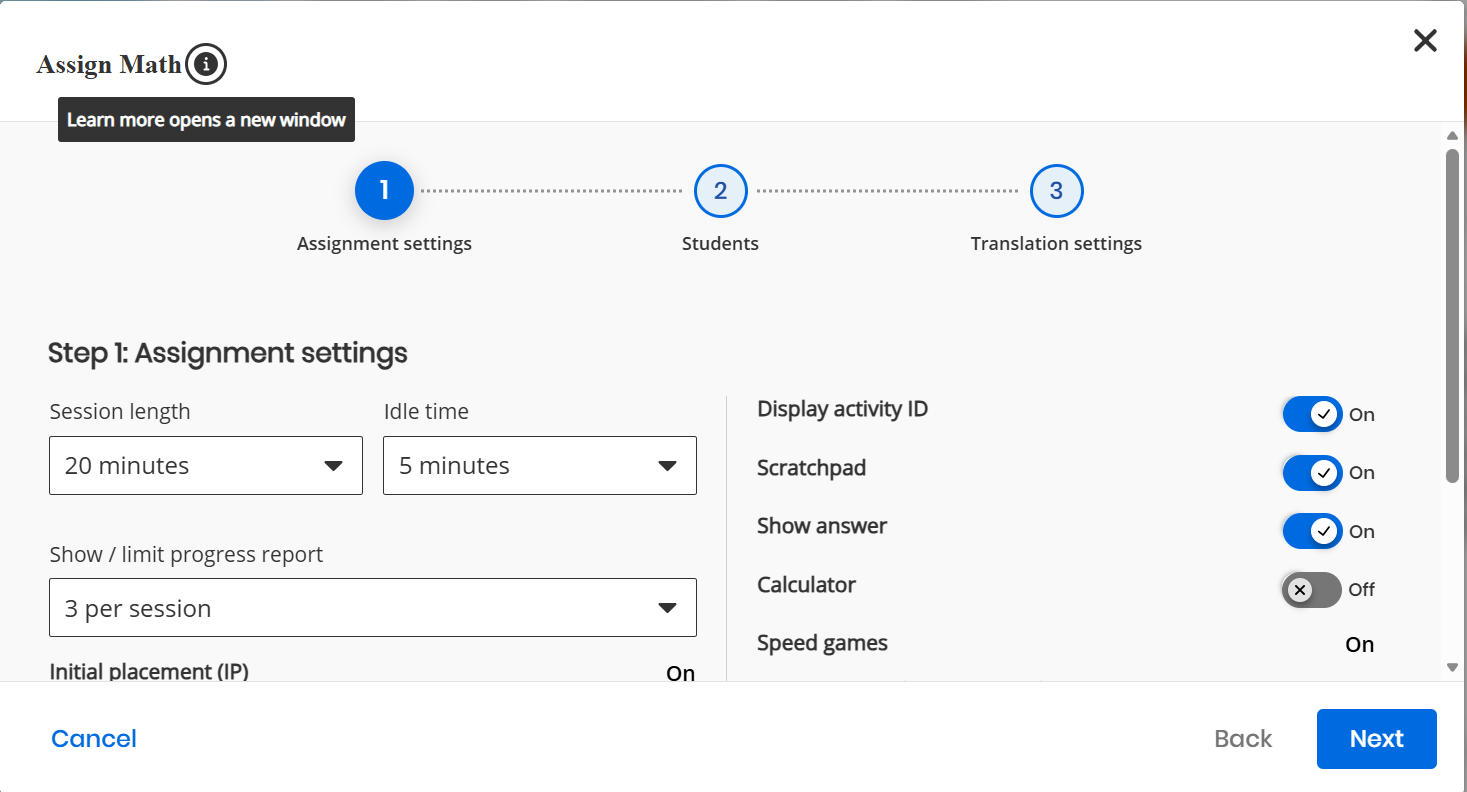
Step 1: Assignment settings - The teacher can set basic assignment settings, like Session length, Idle time, and options to display the Progress Report.
-
Left pane:
-
Session length: From the dropdown list, select the length (duration) of the assignment.
-
Idle time: From the dropdown list, select the idle time of the assignment screen.
-
Show / limit progress report: From the dropdown list, select the number of Progress reports to be displayed.
You can select the functions listed below by toggling the corresponding On and Off buttons.
-
Initial placement (IP): To display the Initial placement (IP).
-
Manually set course level: To set the course level manually.
-
Share at district level?: To display the progress report at the district level.
-
-
Right pane:
-
Display activity ID: To display the activity ID.
-
Scratchpad: To display the scratchpad to assist.
-
Show answer: To display the answer.
-
Calculator: To display the calculator to assist.
-
Speed games: To display the speed games.
-
Speed games time per question: To display the speed games time per question.
-
Speed games total time: To display the total time taken for the speed games.
-
-
Select Next to go to the next page.
-
Select Cancel to abort the Assign wizard.
-
-
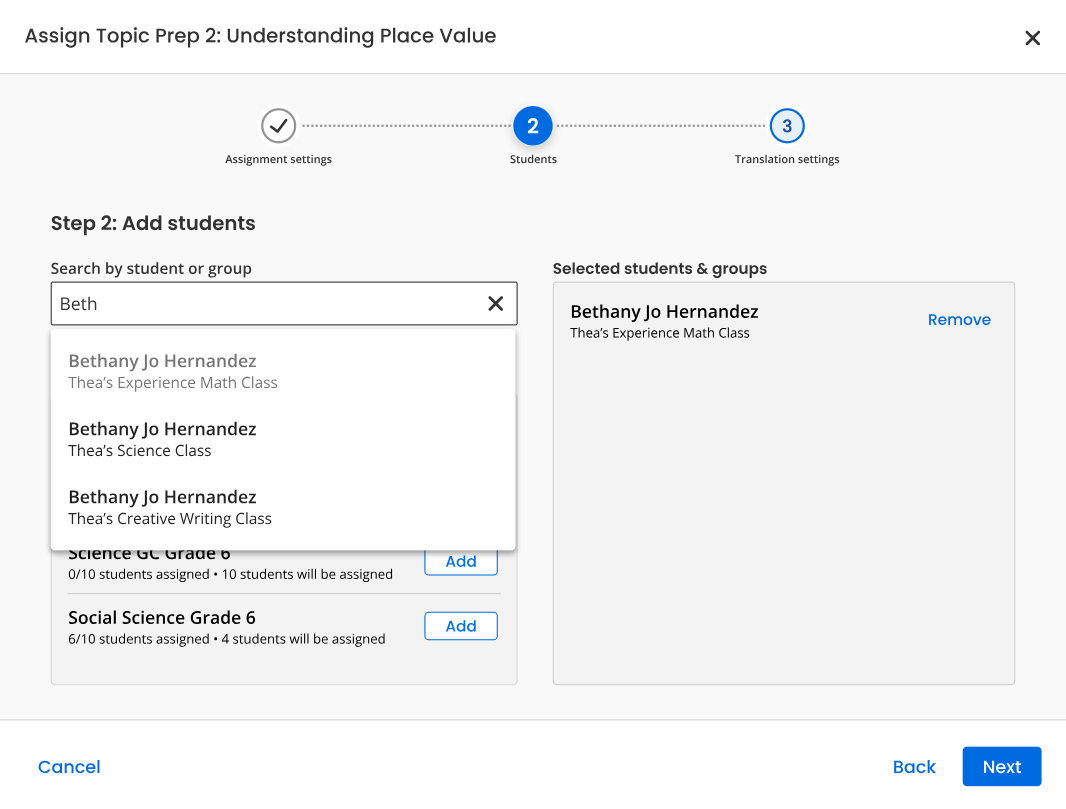
Step 2: Add students - Add students, groups, and classes to the assignment.
Left pane:
-
Enter the name of the class, group, or student you want to assign to by using smart search. Enter the first letter and scroll to the class, group, or student. Search for students using the format of Last Name, First Name and select the magnifying glass icon
 to fetch the result in the list below.
 -
The search results appears under the Quick add groups section. By default, the wizard will also display the suggestions in the same section.
-
When you assign a course or an existing assignment to a group, any students added to the group at a later date will inherit the assignments for that group.
-
-
Select Add button beside the required class, group, or student(s) from the below result section.
Right pane:
-
Selected students and groups: Students and groups added will appear here.
-
Select Remove to remove the class, group, or student(s).
-
Select Next button to go to the next step.
-
Select Back button to go to the previous step.
-
Select Cancel to abort the Assign wizard.
-
-
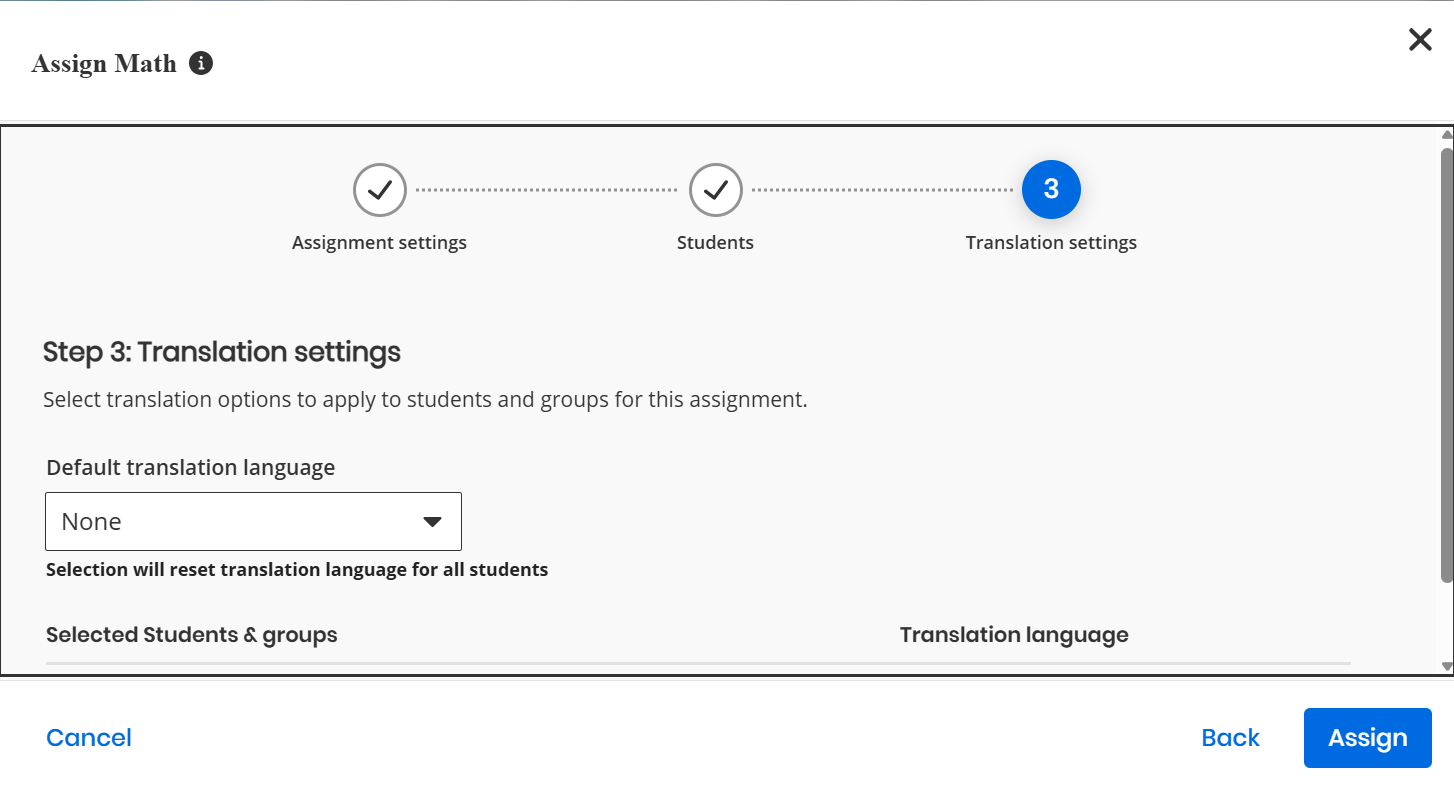
Step 3: Translation settings - Select translation options to apply to students and groups for this assignment.
Upper pane:
-
Default translation language: From the dropdown list, select the preferred language.
-
Selection will reset translation language for all students.
-
By default, no translation language is selected. Some languages are available in text-only version.
-
Bottom pane: Review section
-
Selected Students & groups: Displays the students and groups selected.
-
Translation language: Displays the language selected.
-
Select Back button to go to the previous step.
-
Select Assign to assign.
-
Select Cancel to abort the Assign wizard.
-
-
See Also